
What is WSO2 Agent Manager?
WSO2 Agent Manager is an open-source platform built on open-source technologies and standards.
It specializes in enterprise AI agent management. It allows organizations to deploy, monitor, and govern AI agents.
Its key features include the following:
Deploy AI agents at Scale: Deploy AI agents with production-ready configurations.
Lifecycle Management: Manage the lifecycle of AI agents, including versions, configurations, and deployments.
Governance: Policies, access control, compliance.
Full Observability: Complete tracing, metrics, and logs for AI agents.
Continuous Evaluation: Assess agent quality using built-in evaluators across multiple dimensions.
Auto-Instrumentation: Zero-code changes required for instrumentation.
External Agent Support: Monitor and govern AI agents deployed externally.
Why would your organization use Agent Manager for AI agents?
Moving beyond the POC phase
Focusing on agents instead of infrastructure
Complete visibility and tracing to increase trust
Controlling the agents and what they can access
Freedom to innovate
Reducing OWASP Top 10 Agentic AI risks
Core architecture
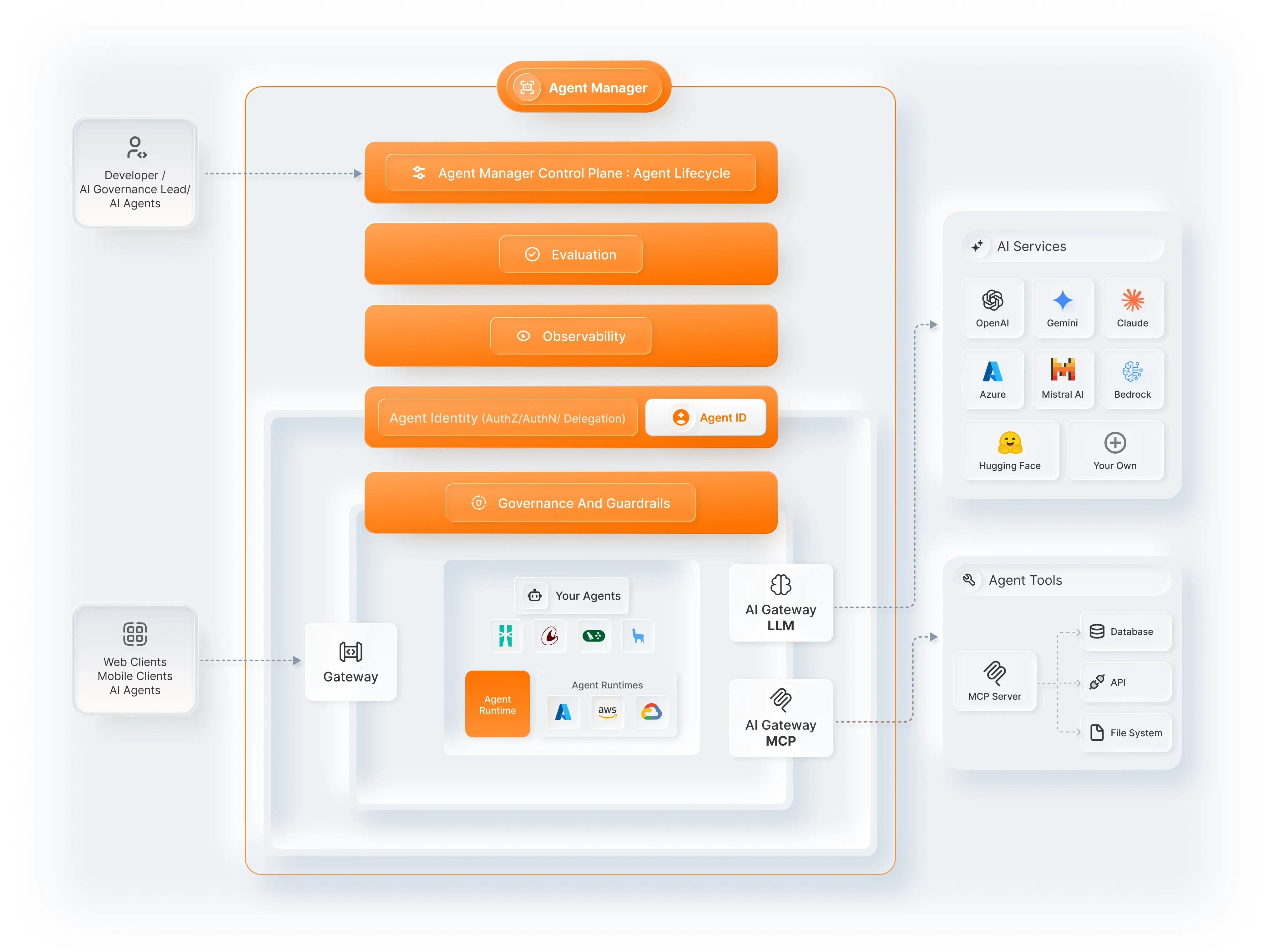
Installation & setup
Installation Options
| Docker | K3D | Your Environment |
|---|---|---|
| Quick Start Approach | On k3d | On Your Environment |
To simplify the demonstration, I will follow the Quick Start Approach to handle setup and install all dependencies using the Quick Start Docker container.
Prerequisites
Minimum System Requirements
| Docker Engine | CPU cores | RAM |
|---|---|---|
| 26+ | 4+ | 8 GB+ |
AI Agent
You can choose any agent you are already subscribed to, or you can use your local agents. For demonstration purposes, I will use a small LLM model in a simple Flask application.
Installation procedure
To pull the Agent Manager Quick Start image in Docker, we have to run this docker command in the terminal, notice that the version is v0.15.0, which is the latest when this article is published.
docker run --rm -it --name amp-quick-start -v /var/run/docker.sock:/var/run/docker.sock ghcr.io/wso2/amp-quick-start:v0.15.0
This command will pull the quick-start development container image and run it.
After the image is pulled and the container is running, we need to run the installation script from inside the container.
./install.sh
This script will install everything needed for the WSO2 Agent Manager:
K3d cluster
OpenChoreo platform
Agent Manager
Full Observability Stack
Installation time will vary depending on your machine’s capabilities, but it will take approximately 15–20 minutes to complete the installation and setup.
Running AI agents via the AI Gateway
After we’ve completed the installation and setup, we can now reach the portal at http://localhost:3000
It will ask for credentials; we will use the default:
Username : admin
Password : admin
After that, it will navigate us to Add a New Agent .
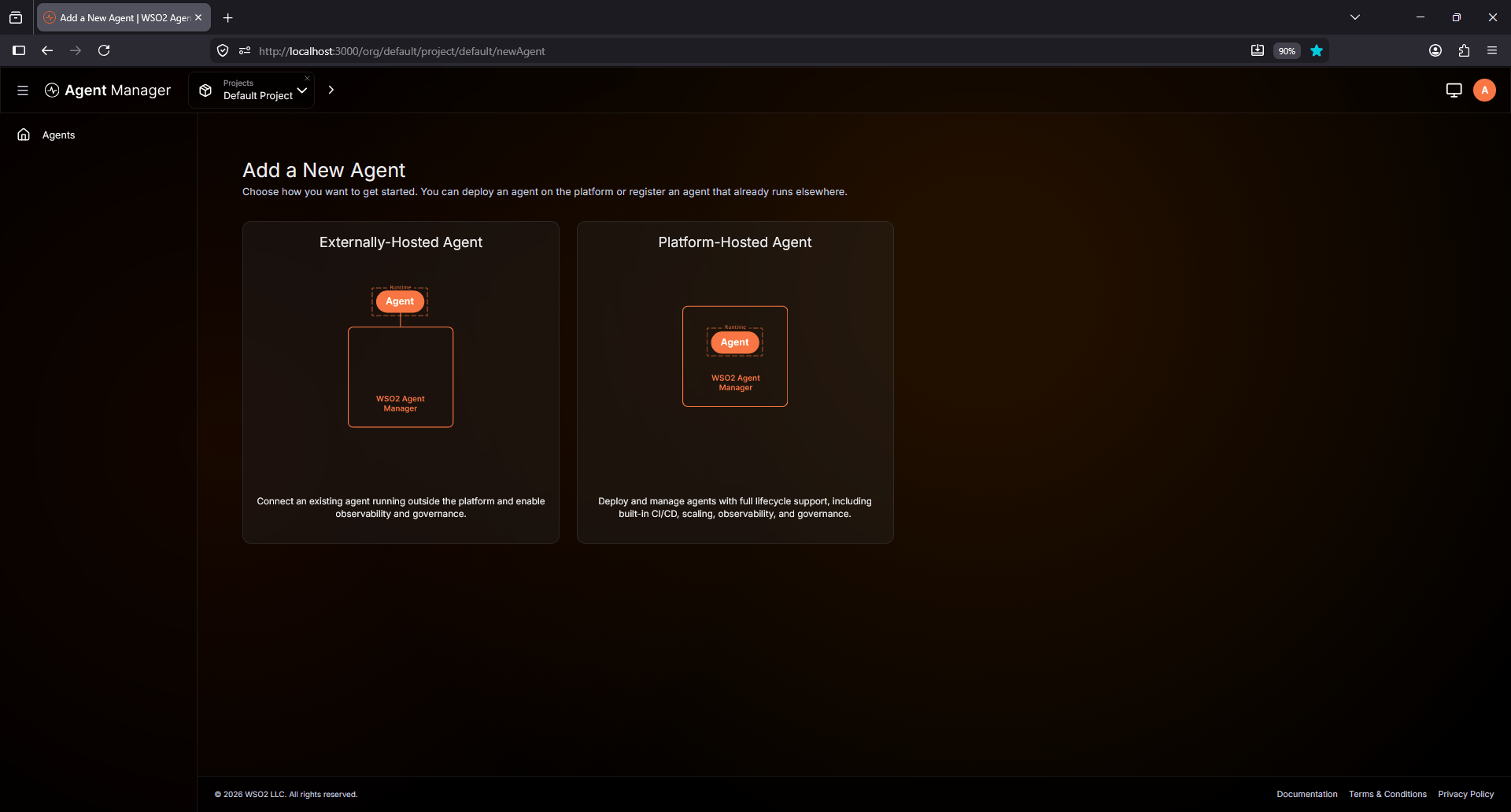
Then we have the option to choose from either Externally-Hosted Agent Or Platform-Hosted Agent.
For my use case I will choose an Externally-Hosted Agent since I already had a setup prepared.
To register an agent, we are required to supply a name, and optionally a description.
I’ll name it : My Helpful Assistant.
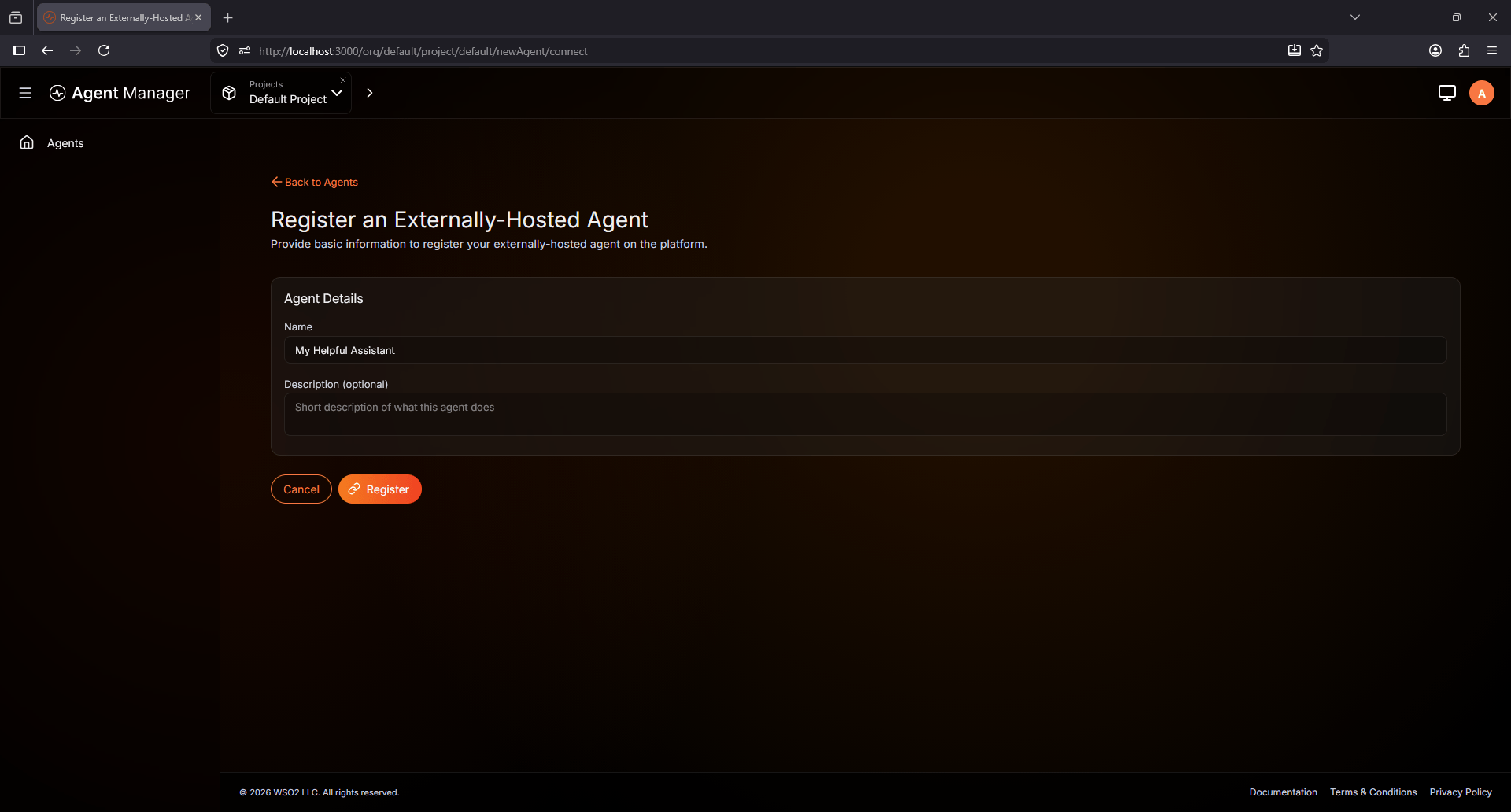
After creating it, the portal will navigate us to the Agent dashboard. It will display the Setup Agent pane on the right side. I will skip it and head straight to the configure page to configure the Agent.
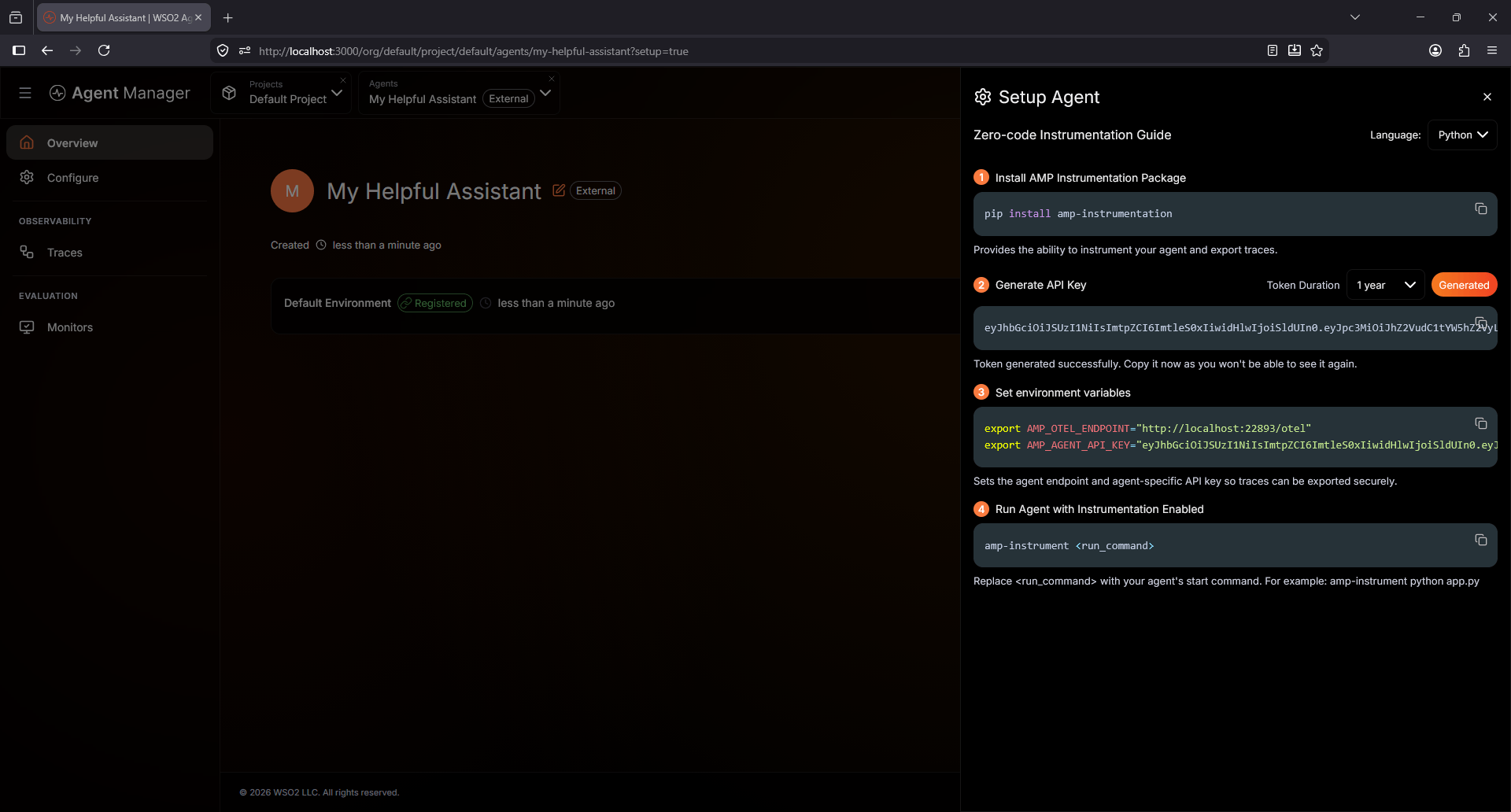
Currently, we don’t have any LLM service providers to configure, we need to add a new one.
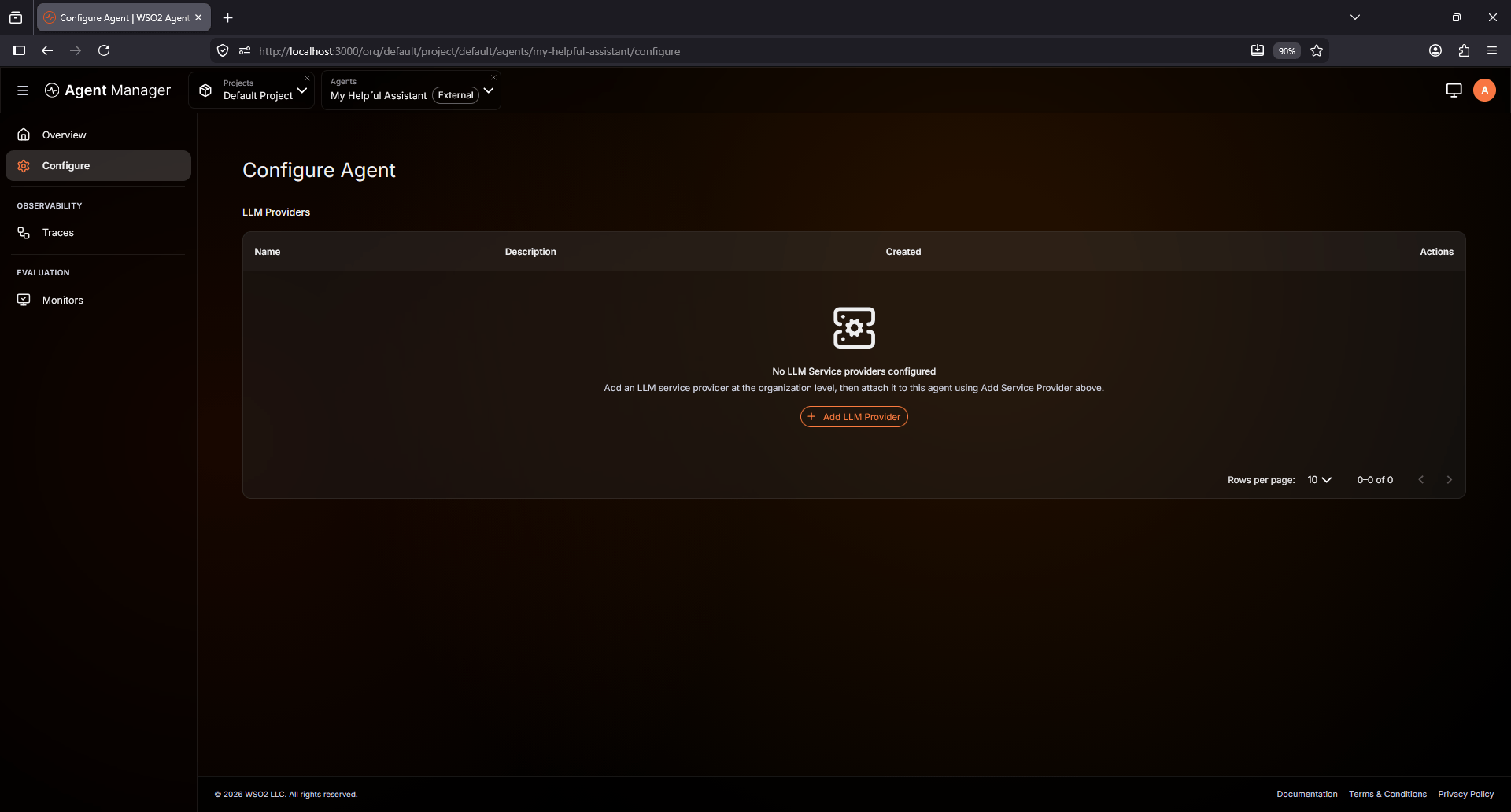
It will ask for details such as the LLM provider name and the LLM service provider.
LLM Provider Name : MY LLM PROVIDER
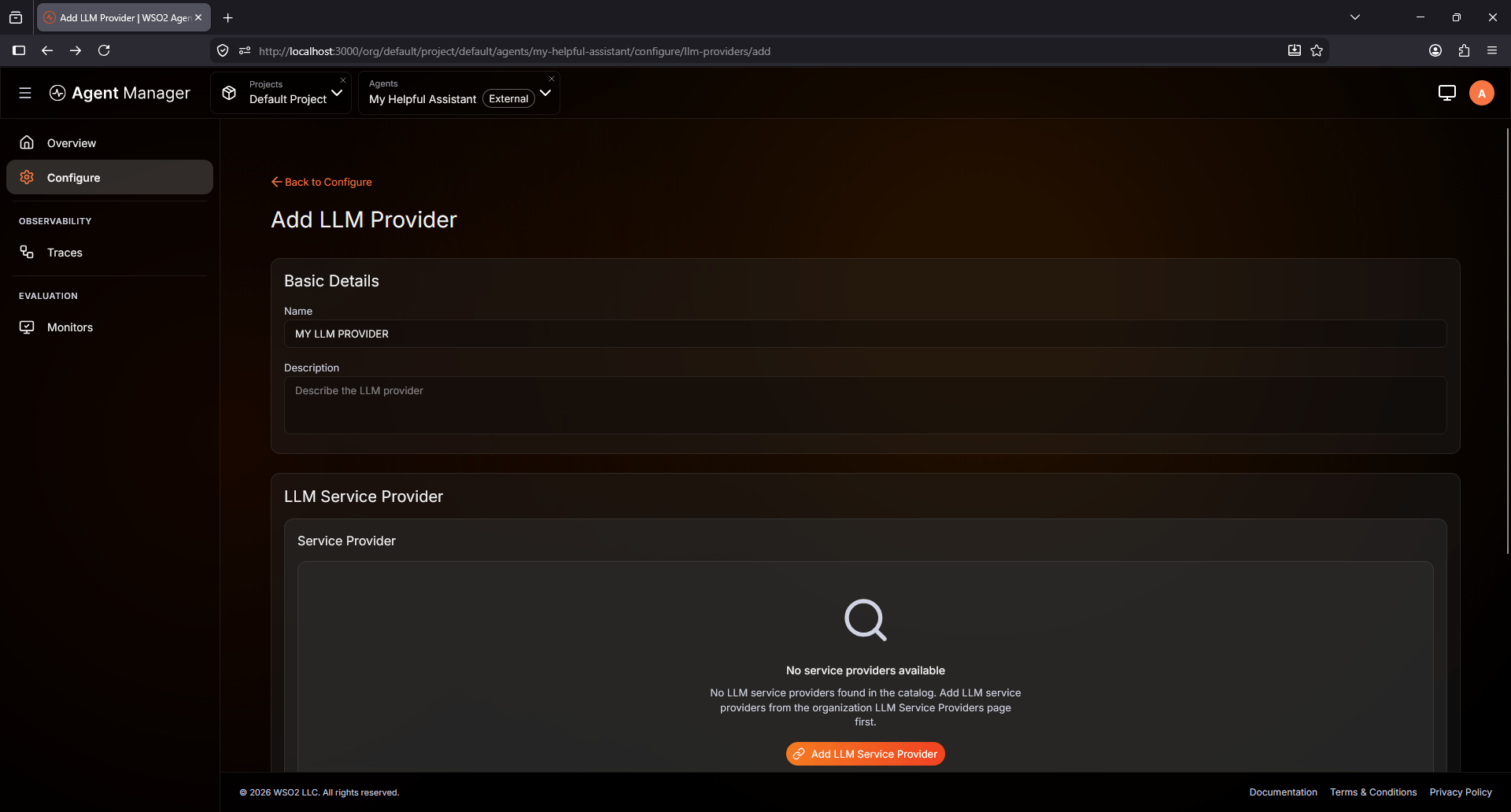
Then we need to create an LLM service provider since we don’t have one.
LLM service provider Name : LLM SERVICE PROVIDER
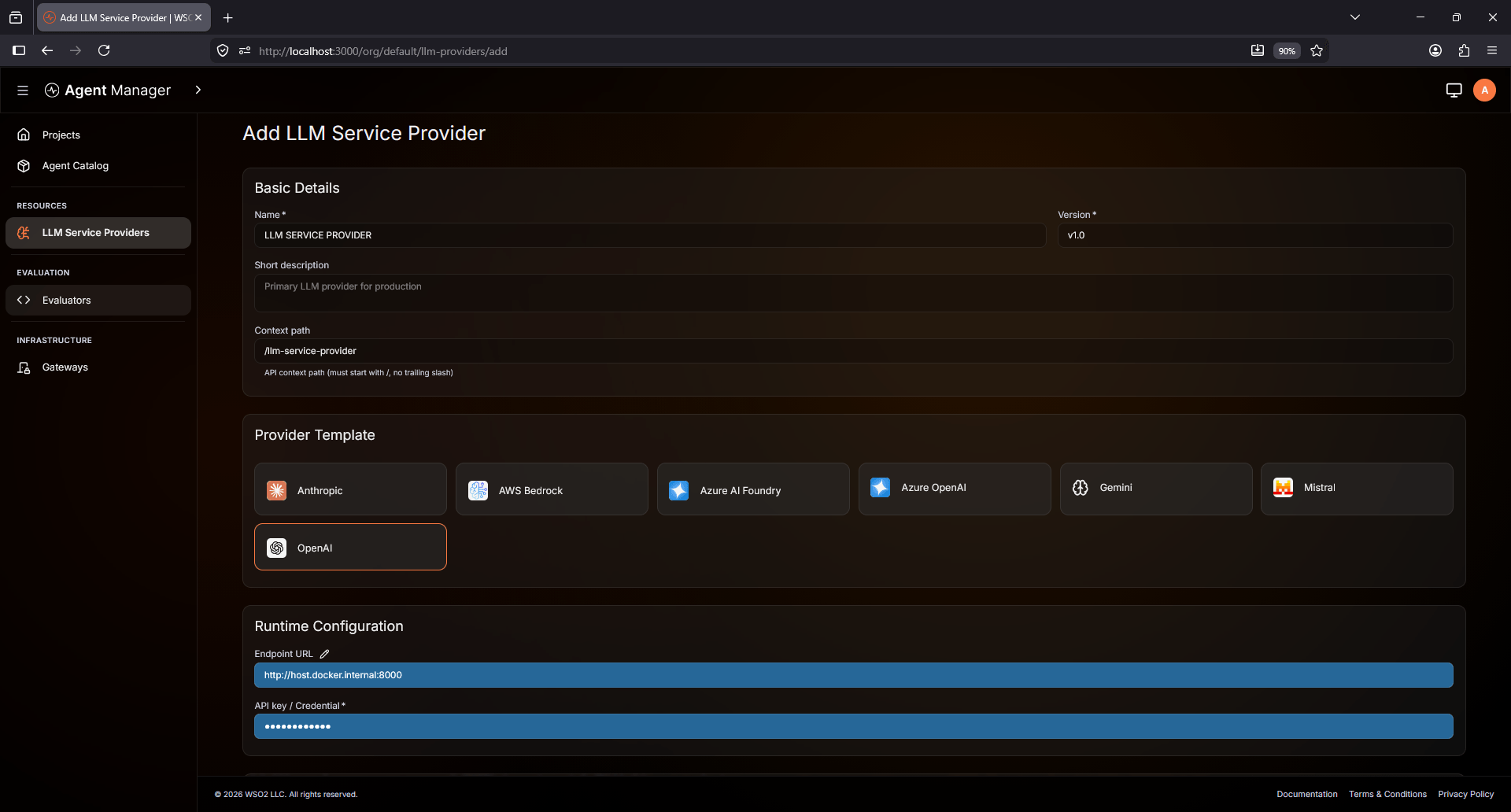
You can also specify the version and context path if needed.
As for the Provider Template, I will choose OpenAI.
For the runtime configuration, I will modify the endpoint URL to match my local LLM endpoint.
You may ask why I’m using host.docker.internal instead of localhost for my service’s URL, it’s to reach my LLM service at my host machine, not inside the docker container.
The API key/credential can be arbitrary in this step since it’s my local setup not an actual provider.
That leaves us with the deployment configuration at the bottom of the page to choose the Gateway for the Provider. I will choose the default Gateway since I didn’t create a custom one.
After we’ve created it, it will navigate us to the LLM Provider’s configuration page.
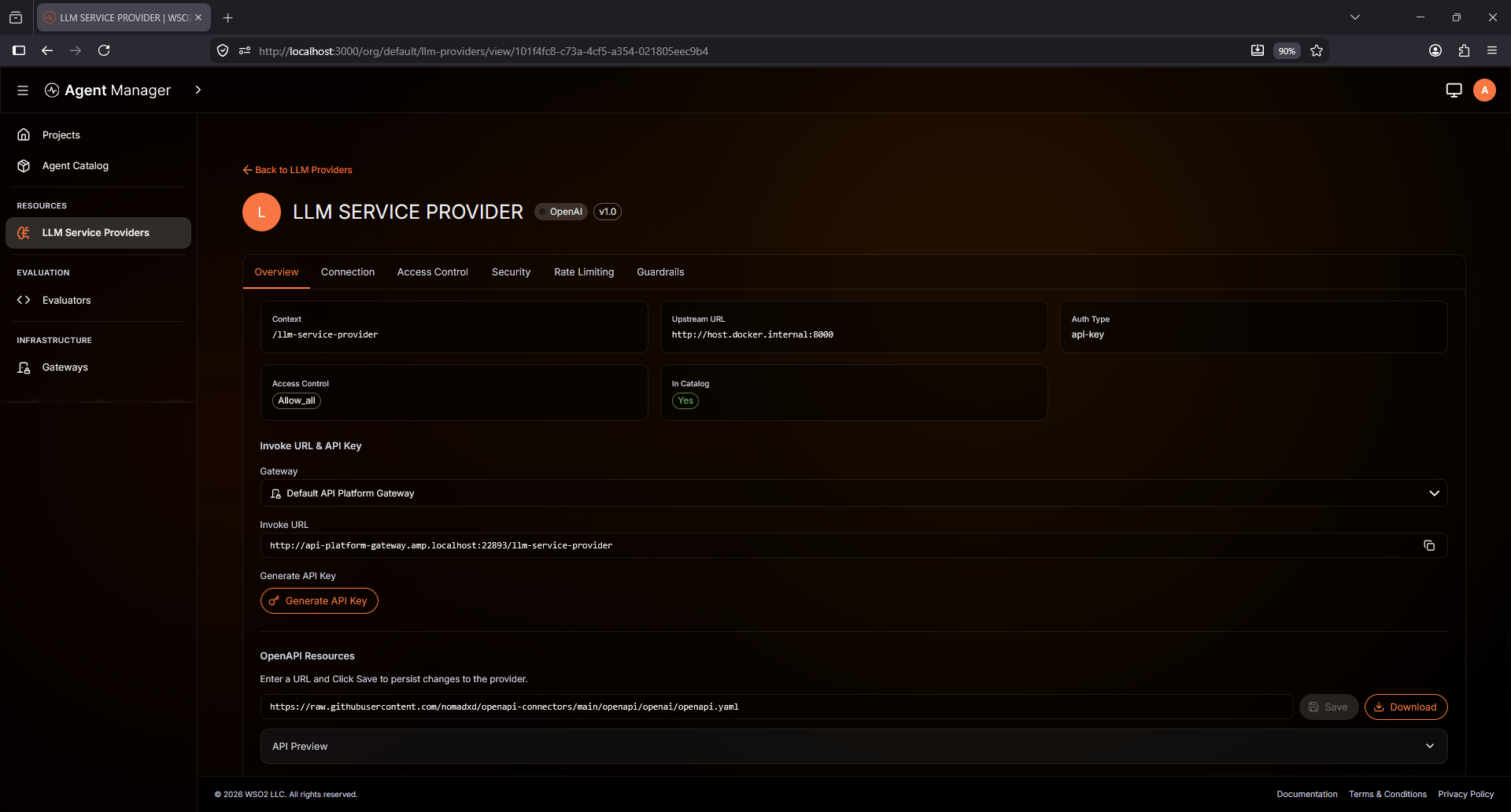
Now, there is a lot of configuration to complete. First of all, let’s check the OpenAPI Resources at the bottom of the page. It’s currently showing a default / sample OpenAPI spec, I will change the URL to use my agent’s OpenAPI spec at http://localhost:8000/openapi.yaml, which will show all the APIs that exist in the OpenAPI spec.
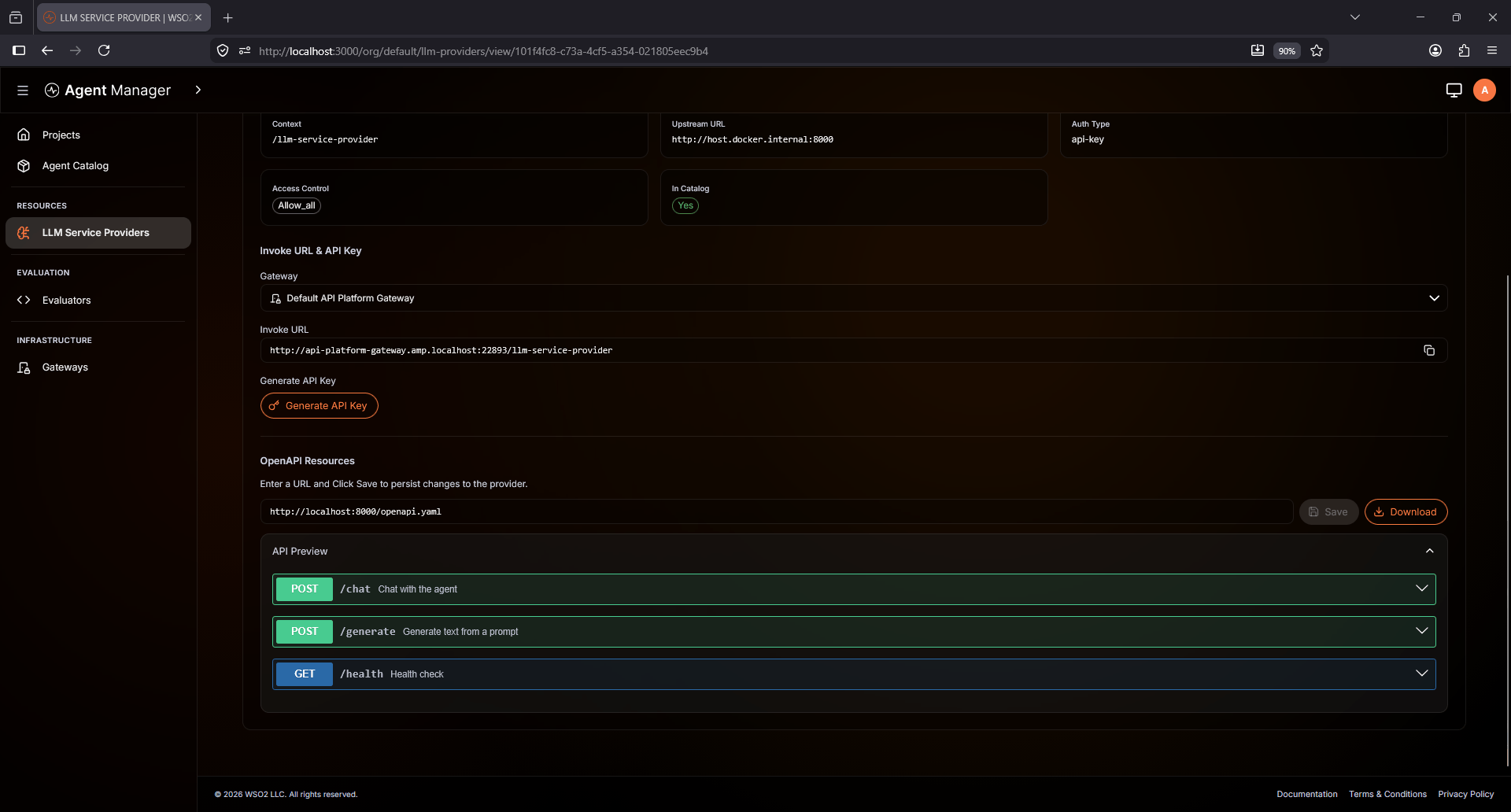
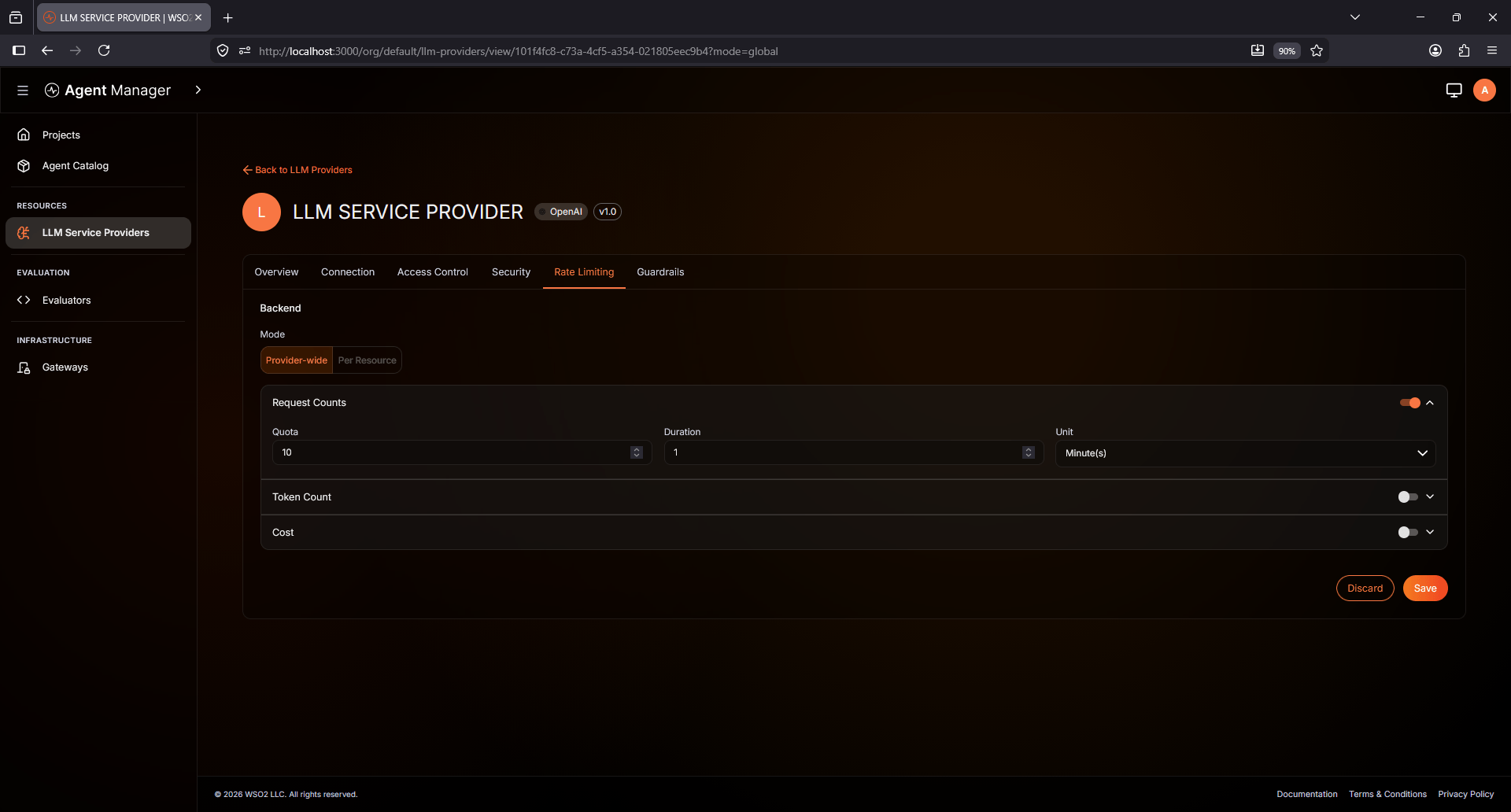
You may explore all the configuration settings for the LLM Service provider, but I will skip to the rate limiting tab, I will choose the Provider-wide mode and introduce a 10 requests per minute limit.
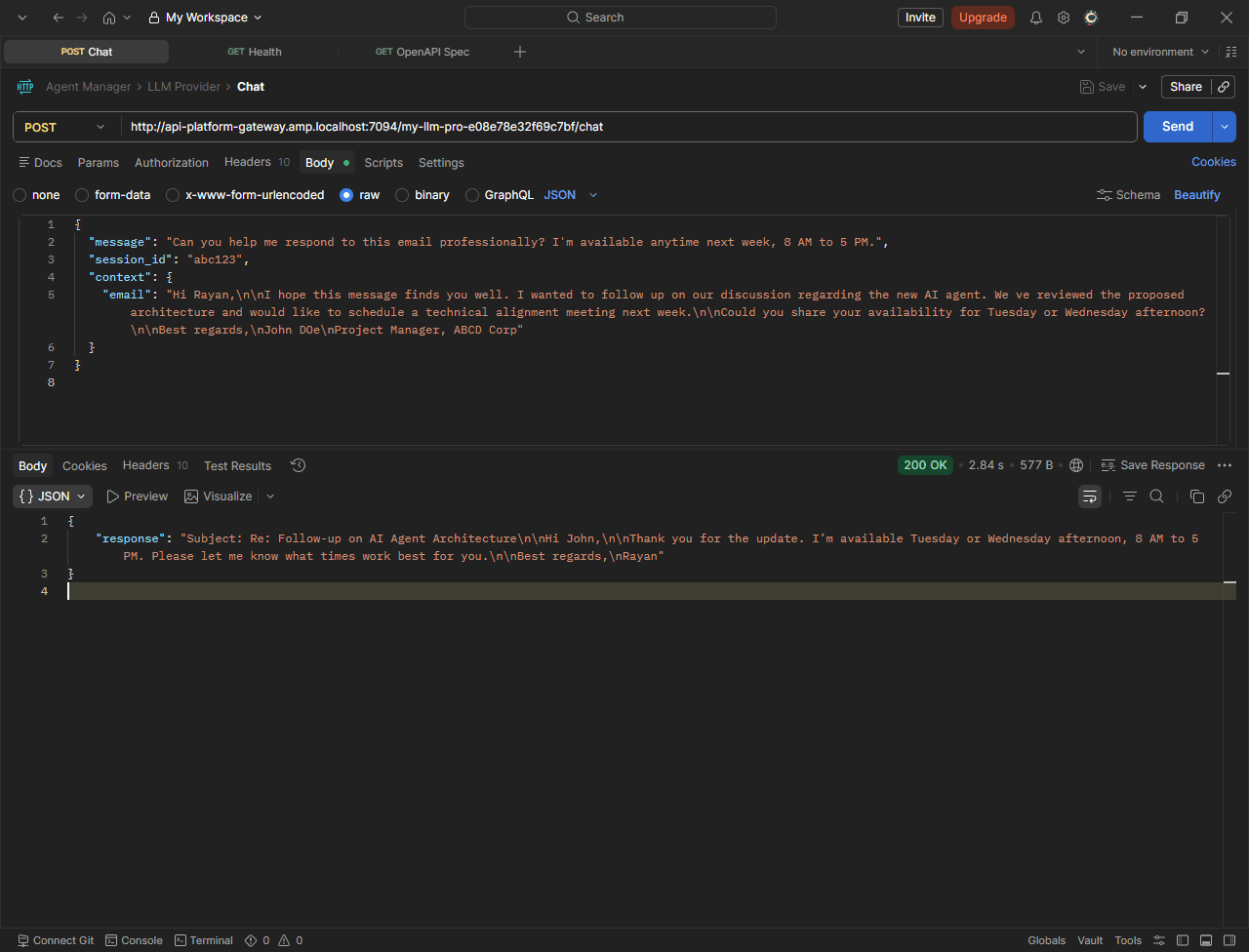
Now I can try the endpoints specified in our LLM service provider before adding it to our agent. I will use the Invoke URL in the Overview tab. By default it is http://api-platform-gateway.amp.localhost:22893/{your LLM service provider context}. In my case, it is http://api-platform-gateway.amp.localhost:22893/llm-service-provider. I will generate an API key for authenticated access to my LLM endpoints using the x-api-key header.
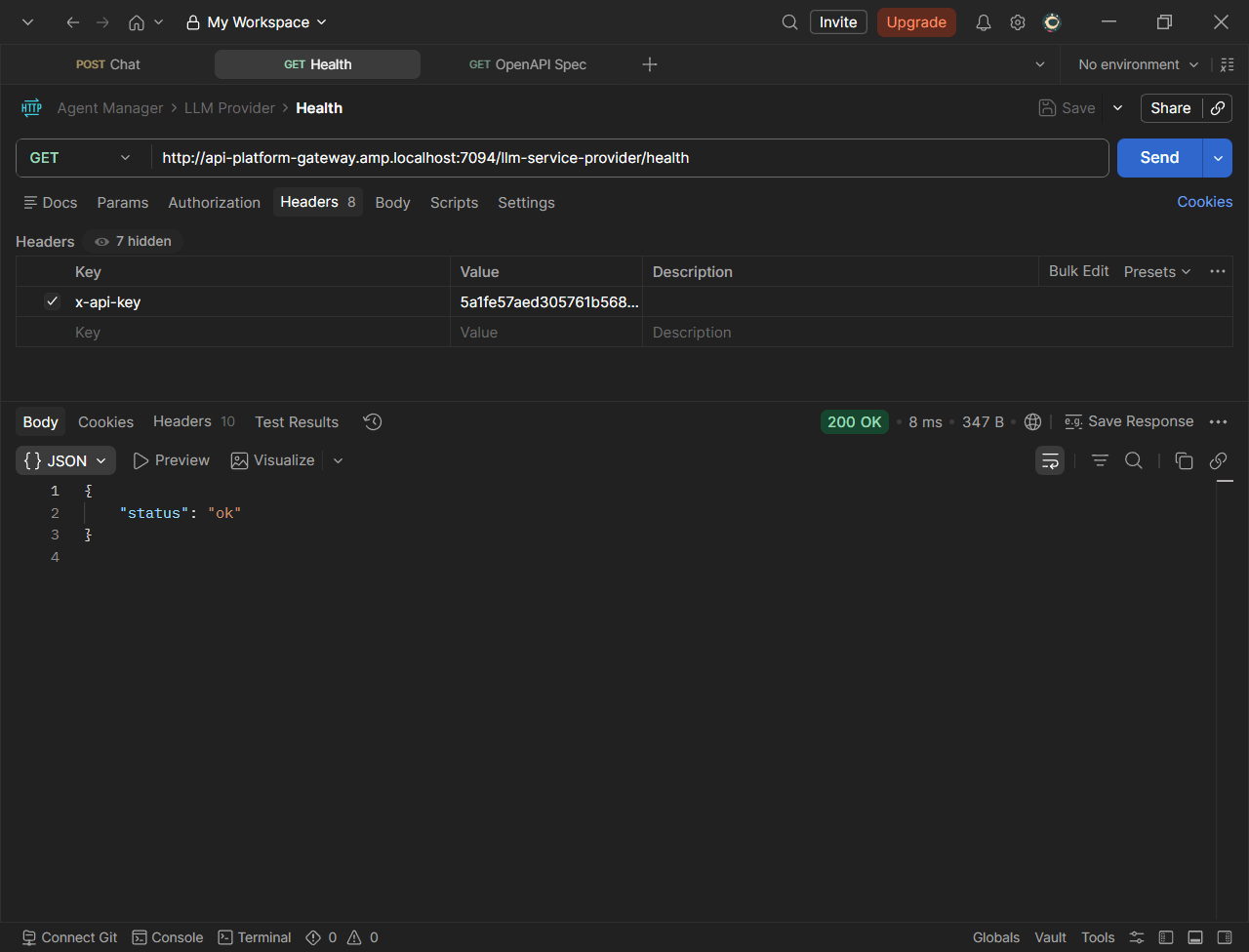
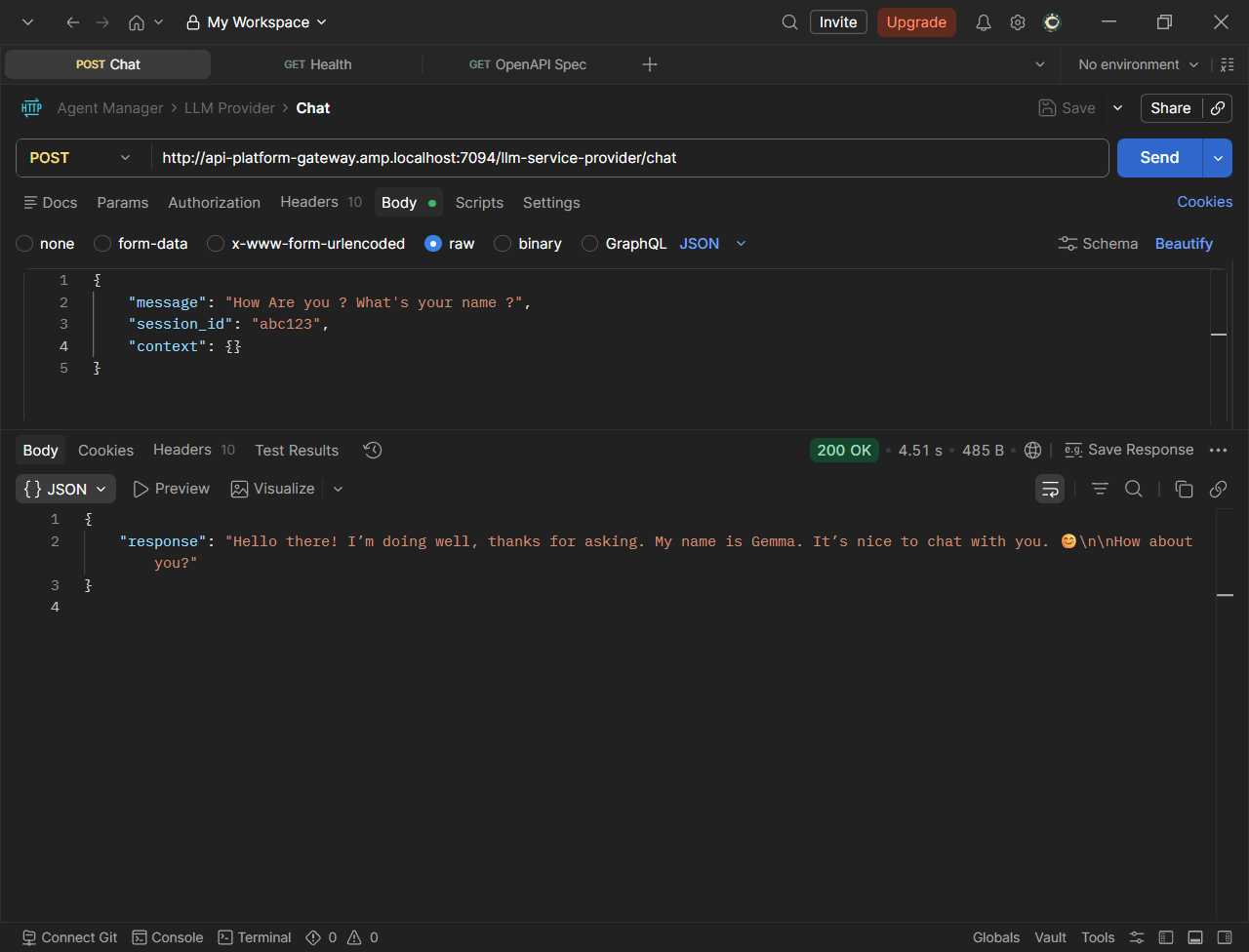
You may notice in the testing I’m using port 7094 instead of 22893; this is mainly due to a limitation of my host machine, I’ve modified some ports to ensure they are working as expected. You may proceed as it’s by default.
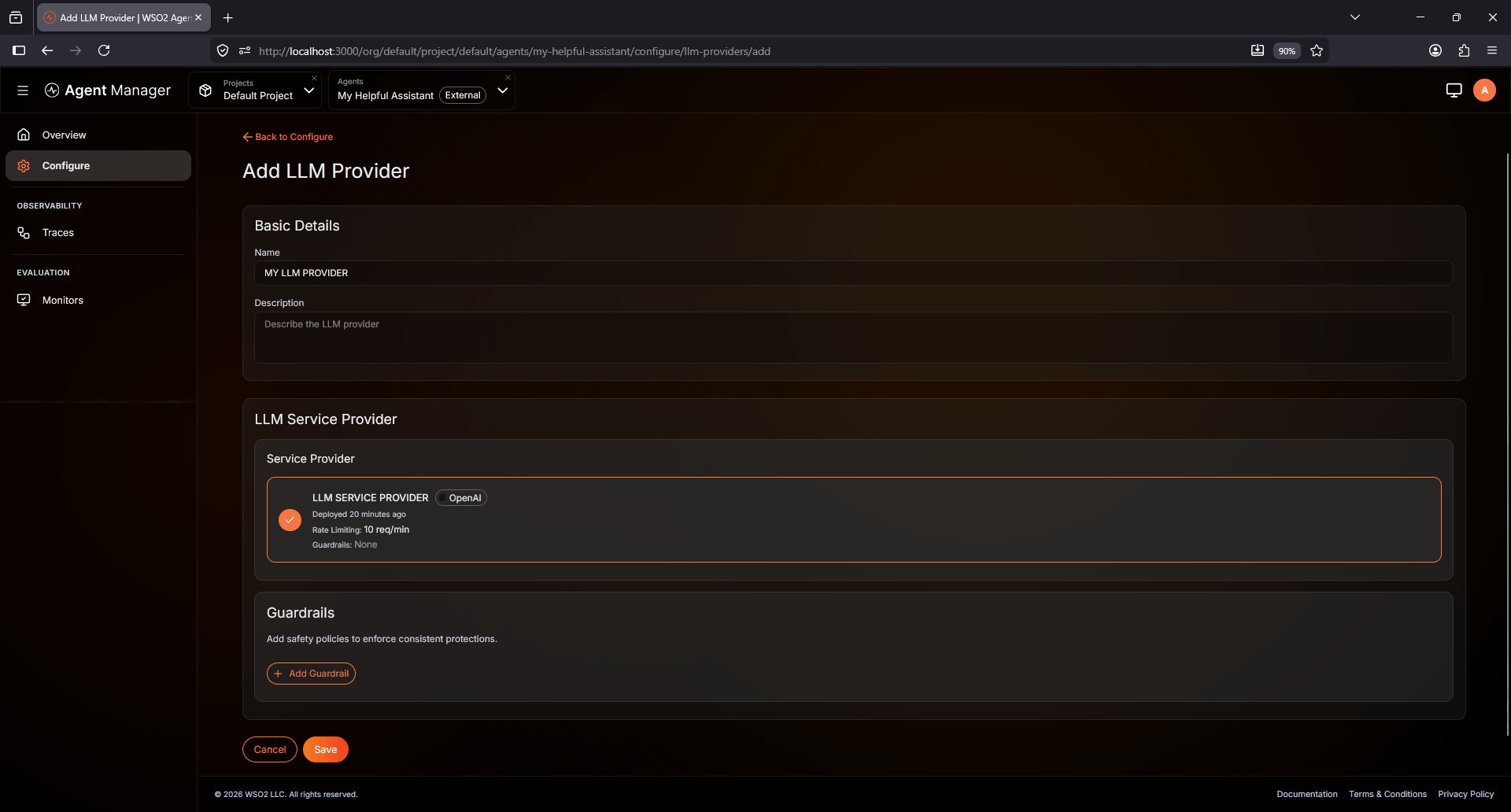
Now that we’ve made our LLM Service Provider and tested it successfully, I will navigate to the agent we’ve made in the beginning, My Helpful Assistant, and head straight to the configure tab and create our LLM Provider. I’ll name it MY LLM PROVIDER , and then below in the LLM Service Provider selection, I will choose the Service Provider which we just deployed and tested.
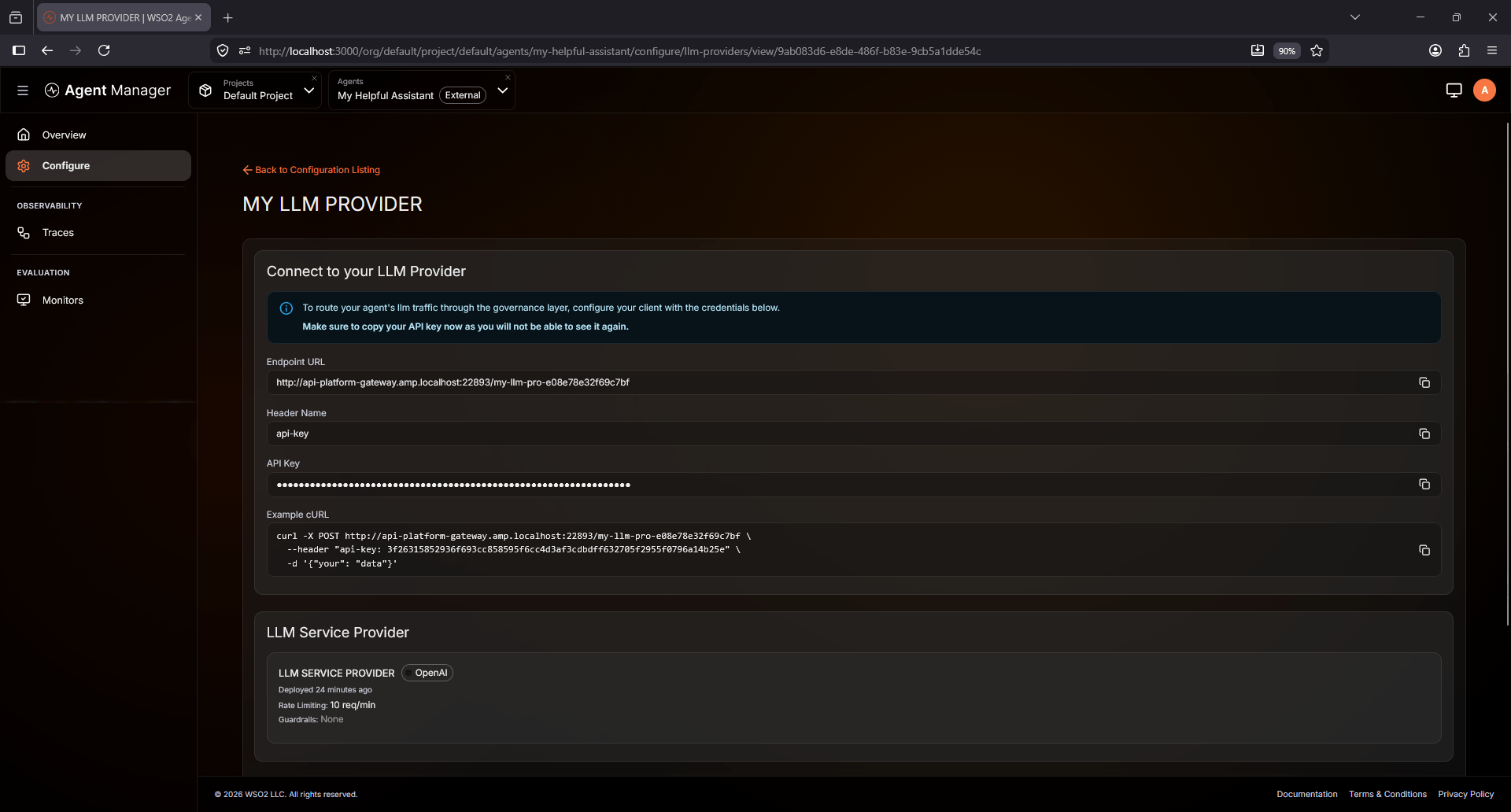
Now it will show the information for us or other users to use to connect to the LLM. take note that the API Key is displayed once only; I will copy it and store it securely. Please bear in mind that the API Key header is now api-key instead of the one we’ve used to test the Service provider x-api-key
With this, I’ve deployed my local LLM setup in WSO2 Agent Manager, making it ready for production use.
The features covered here are not the only ones available. As of version v0.15.0, Agent Manager includes additional features and monitoring capabilities for securely deploying agents in production environments. Feel free to explore the full set of features provided by WSO2 Agent Manager.
Real-world examples
Customer Support Agents
AI agents that answer customer questions while being monitored, rate-limited, and secured through Agent Manager.
Internal Company Assistants
AI assistants connected to company documents, HR systems, or internal tools with controlled access and observability.
Banking & Finance Agents
Financial AI agents that require auditing, security policies, and compliance monitoring.
Healthcare Assistants
AI agents for patient support or appointment handling with secure access to healthcare systems.
Multi-Agent Enterprise Systems
Managing multiple AI agents across departments like HR, IT, and Sales from a single platform.
Conclusion
In our journey, we installed WSO2 Agent Manager, configured an external AI Agent (the local setup) and exposed it through the gateway, explored some real-world examples that may require introducing an agent manager to help organizations manage and govern AI agents.